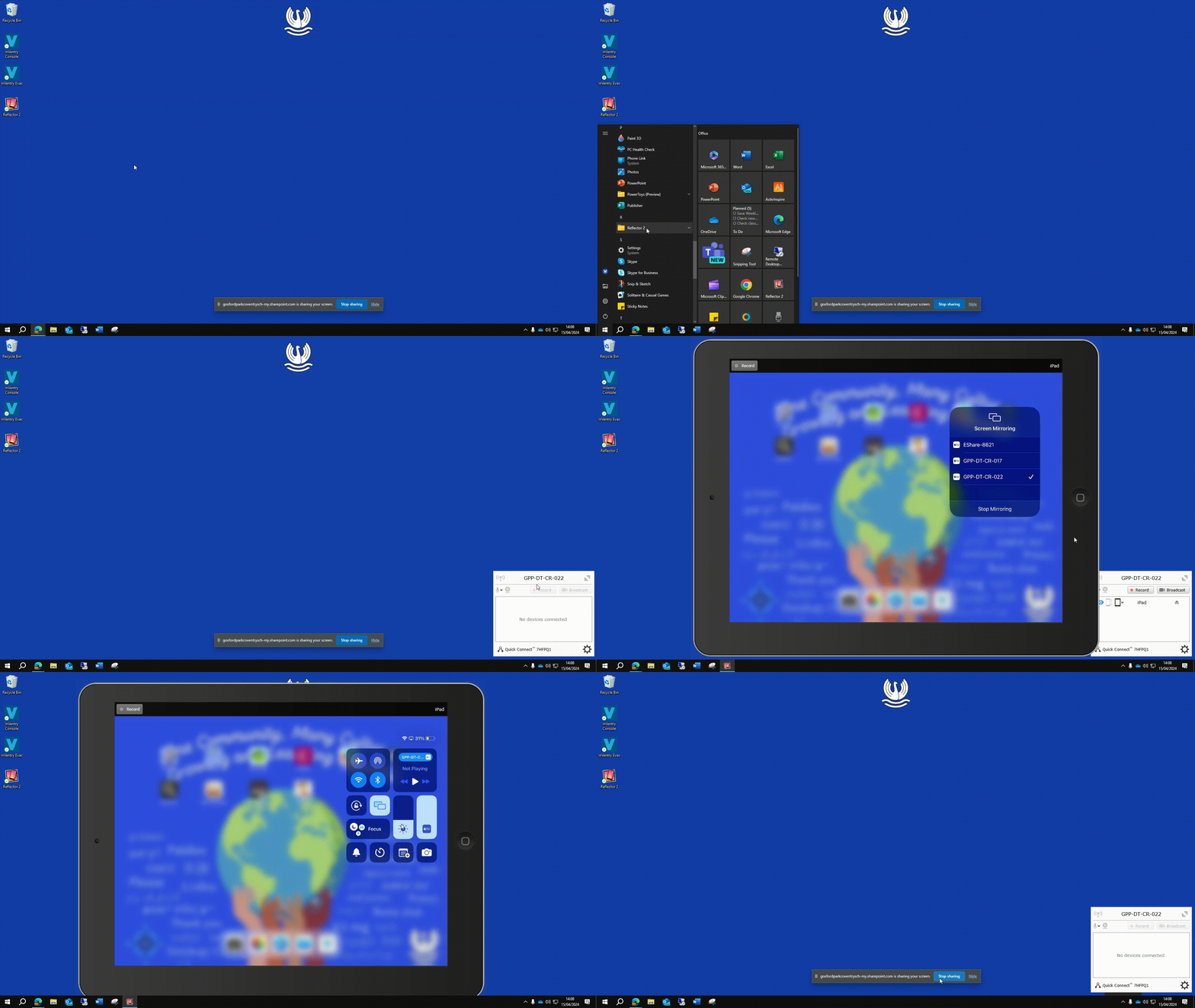
Did you know you all have an iPad mirroring solution on your classroom desktops. Reflector is a powerful screen-mirroring tool that has been installed on all classroom computers. Reflector allows you to wirelessly mirror your iPad screens directly to the classroom computer. Reflector 2 enables seamless sharing of iPad screens onto the large interactive display.
- You need to click on Reflector (can be found on the start menu) and then you should be able to screen mirror from an iPad directly to your computer. Look for the computer name on the iPad when screen mirroring.
How to Share from an iPad
- On the iPad, swipe down from the top-right corner to open Control Center.
- Tap Screen Mirroring.
- Select the classroom computer (it will show the Reflector name).
- Enter the on-screen code if prompted.
How to Share from a Chromebook
- Make sure the Chromebook and classroom computer are on the same Wi-Fi network.
- Click the Clock (bottom-right) → Cast.
- Select the classroom computer running Reflector.
- Choose Cast screen or Cast tab.